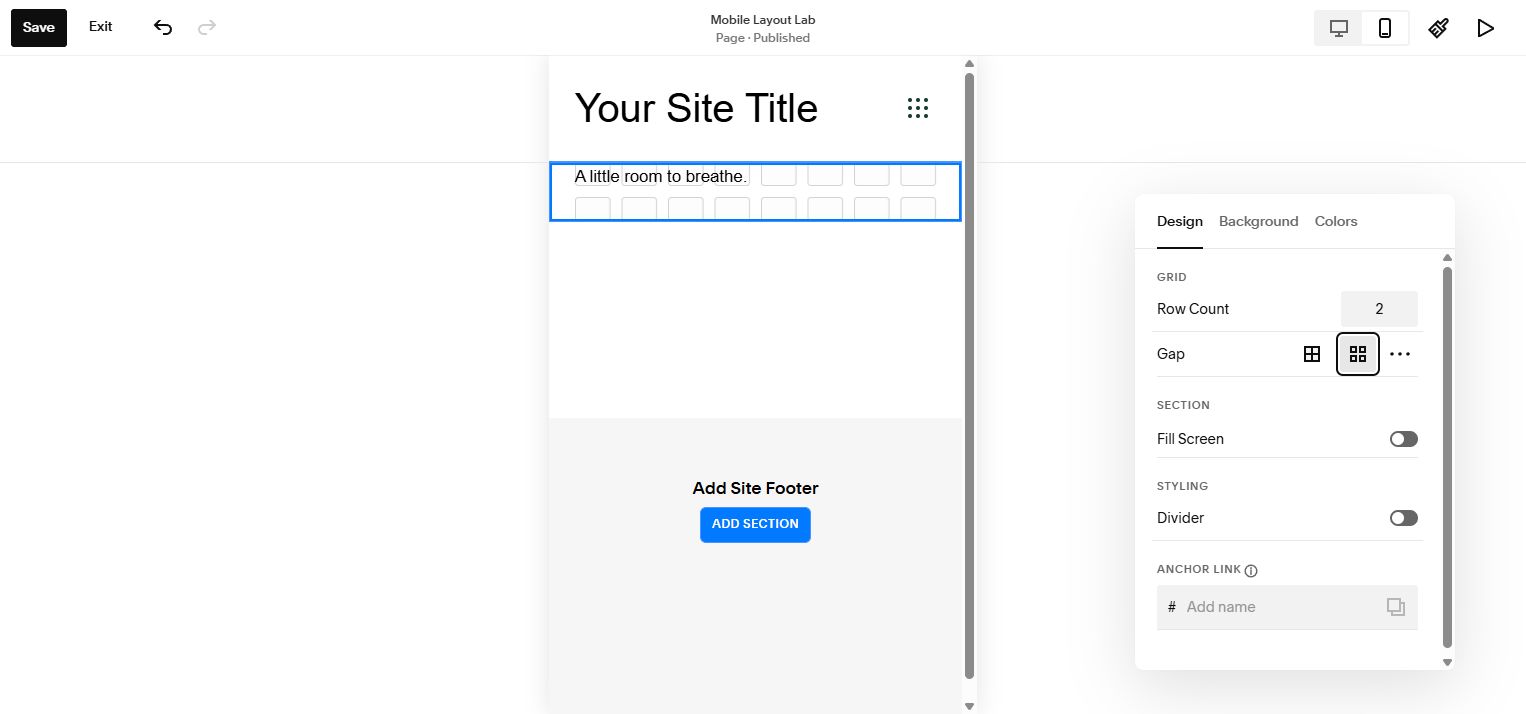
Squarespace 7.1 ships with rigid section layouts, fixed content widths, and gallery grids that all look the same out of the box. This guide gives you 18 copy-paste CSS solutions covering section padding, full-width layouts, sticky sections, parallax effects, card grids, gallery overlays, and more. Every snippet goes into Design → Custom CSS unless noted otherwise.
Each section includes the exact CSS you need, an explanation of how it works, and notes on mobile behavior. If you need to find a section's data-section-id, right-click the section in your browser, choose Inspect, and look for the attribute on the .page-section element. Replace YOUR_SECTION_ID in any snippet with your actual ID.
1. Change Section Padding
Every section in Squarespace 7.1 uses the .page-sectionclass. The built-in section padding controls in the editor give you limited options — usually just small, medium, and large presets. CSS lets you set exact pixel values and control top and bottom padding independently.
You can override padding globally across all sections, or target a specific section by its data-section-idattribute. The mobile media query ensures sections don't eat up too much screen space on smaller devices where vertical real estate is precious.
/* Global section padding */
.page-section {
padding-top: 60px !important;
padding-bottom: 60px !important;
}
/* Specific section by ID */
[data-section-id="6501abc123def"] {
padding-top: 100px !important;
padding-bottom: 100px !important;
}
/* Reduce padding on mobile */
@media screen and (max-width: 767px) {
.page-section {
padding-top: 40px !important;
padding-bottom: 40px !important;
}
}Result:Sections use your exact padding values instead of Squarespace's preset options. The mobile override prevents excessive whitespace on phones.
Tip
Use our Spacing Calculator to generate consistent padding values across your site. A common rhythm is 80px on desktop and 48px on mobile.
2. Make Sections Full Width
Squarespace 7.1 constrains content within a max-width container. This is fine for text-heavy pages, but image banners, colored background sections, and portfolio layouts often need to break out of that container and stretch edge-to-edge across the viewport.
Override the .content-wrapper max-width and remove horizontal padding to make a section truly full-width. You can target all sections globally or use the section ID to selectively break out specific sections.
/* Make specific section full width */
[data-section-id="YOUR_SECTION_ID"] .content-wrapper {
max-width: 100% !important;
padding-left: 0 !important;
padding-right: 0 !important;
}
/* Or make ALL sections full width */
.page-section .content-wrapper {
max-width: 100% !important;
padding-left: 0 !important;
padding-right: 0 !important;
}Result:The targeted section's content stretches to the full browser width, breaking out of the default content container. Background colors and images extend edge-to-edge.
3. Hide Sections on Mobile
Some sections work on desktop but add unnecessary scroll depth on mobile — decorative image bands, large infographics, or redundant navigation blocks. Hiding them on smaller screens keeps the mobile experience focused and fast.
Target the section by its data-section-id and wrap the display: nonerule in a media query. You can also do the inverse — hiding on desktop and only showing on mobile — for mobile-specific content like tap-to-call buttons.
@media screen and (max-width: 767px) {
[data-section-id="YOUR_SECTION_ID"] {
display: none !important;
}
}
/* Or hide on desktop only, show on mobile */
@media screen and (min-width: 768px) {
[data-section-id="YOUR_SECTION_ID"] {
display: none !important;
}
}Result:The section disappears on screens below 768px (or above 768px for the desktop-only version). The space it occupied collapses completely — no blank gap left behind.
Tip
Find your section ID quickly with our ID Finder tool. Right-clicking and inspecting works too, but the tool is faster when you need multiple IDs.
4. Center Content Vertically
Hero sections, banner areas, and call-to-action blocks look best when their content sits in the vertical center of the section. Squarespace doesn't offer a vertical centering control in the editor, but flexbox handles it cleanly.
Set a min-height on the section so there's vertical space to center within, then use align-items: center on the content wrapper. Combine with text-align: centerfor full horizontal and vertical centering — perfect for hero text with a CTA button.
[data-section-id="YOUR_SECTION_ID"] {
min-height: 80vh !important;
display: flex !important;
align-items: center !important;
justify-content: center !important;
}
[data-section-id="YOUR_SECTION_ID"] .content-wrapper {
display: flex !important;
align-items: center !important;
justify-content: center !important;
text-align: center;
}Result: All content within the section floats to the vertical and horizontal center. The section takes up at least 80% of the viewport height, creating a dramatic hero-style presentation.
5. Add Section Dividers
Squarespace 7.1 sections sit flush against each other by default. Adding a subtle divider line between sections creates visual separation without relying on background color changes. This is especially useful on single-color pages.
The simple approach uses a top border on every section after the first. For a more refined look, use a ::before pseudo-element to create a short, centered accent line that draws the eye without spanning the full width.
/* Simple full-width divider */
.page-section + .page-section {
border-top: 1px solid #e0e0e0 !important;
}
/* Centered short divider */
.page-section + .page-section::before {
content: '';
display: block;
width: 60px;
height: 3px;
background-color: #e63946;
margin: 0 auto;
position: relative;
top: -2px;
}Result: A thin line appears between consecutive sections. The centered short divider version creates a decorative 60px accent bar in your brand color — change the background-color and width to match your design.
6. Create Sticky Sections
Sticky sections stay pinned in place as the user scrolls past them. This is useful for persistent CTAs, sidebar navigation, or a section you want to remain visible while the rest of the page scrolls beneath it.
CSS position: sticky does the heavy lifting. The topvalue controls where the section locks into position. Set it to at least 80px to clear a fixed header. The parent element must have enough height for sticky behavior to activate — it only works while the parent is in view.
[data-section-id="YOUR_SECTION_ID"] {
position: sticky;
top: 80px;
z-index: 100;
background: #fff;
}
/* For sticky sidebar in a grid layout */
.sqs-layout .sqs-col-6:last-child .sqs-block {
position: sticky;
top: 100px;
}Result: The section stays fixed at 80px from the top of the viewport while the user scrolls. Once the parent container scrolls out of view, the sticky element scrolls away with it naturally.
Warning
Sticky positioning breaks if any ancestor has overflow: hidden or overflow: auto. Squarespace's outer wrappers sometimes set these. If sticky isn't working, inspect parent elements for overflow properties and override them with overflow: visible !important.
7. Parallax Background Effect
Parallax makes a section's background image appear to scroll at a different speed than the foreground content, creating a sense of depth. On Squarespace 7.1, you achieve this by hiding the default section background image and replacing it with a CSS background that uses background-attachment: fixed.
The trick is to hide the <img> tag Squarespace renders for the background and use a CSS background-image on the .section-background container instead. This gives you full control over the parallax behavior and fallback on mobile.
[data-section-id="YOUR_SECTION_ID"] .section-background img {
display: none;
}
[data-section-id="YOUR_SECTION_ID"] .section-background {
background-image: url('YOUR_IMAGE_URL');
background-attachment: fixed;
background-position: center;
background-size: cover;
}
@media screen and (max-width: 767px) {
[data-section-id="YOUR_SECTION_ID"] .section-background {
background-attachment: scroll;
}
}Result: The background image stays fixed in place while content scrolls over it, creating a cinematic depth effect. On mobile, the effect gracefully degrades to a normal static background.
Warning
background-attachment: fixed is disabled on iOS Safari and most mobile browsers for performance reasons. The mobile media query fallback above ensures those visitors still see the background image normally rather than a broken layout.
8. 50/50 Split Image & Text
The 50/50 split layout — image on one side, text on the other — is one of the most popular patterns in modern web design. Squarespace 7.1's section columns can be forced into this layout using flexbox on the content wrapper.
Set the image side to use object-fit: coverso it fills its half completely regardless of aspect ratio. The text side gets padding and vertical centering. On mobile, the layout stacks naturally because Squarespace's responsive CSS handles the column collapse.
[data-section-id="YOUR_SECTION_ID"] .content-wrapper {
display: flex;
align-items: stretch;
max-width: 100% !important;
padding: 0 !important;
}
[data-section-id="YOUR_SECTION_ID"] .content-wrapper > .fe-block:first-child {
flex: 1;
}
[data-section-id="YOUR_SECTION_ID"] .content-wrapper > .fe-block:first-child img {
width: 100%;
height: 100%;
object-fit: cover;
}
[data-section-id="YOUR_SECTION_ID"] .content-wrapper > .fe-block:last-child {
flex: 1;
display: flex;
align-items: center;
padding: 60px;
}Result: The section splits into two equal halves. The image fills the left side edge-to-edge while the text content sits vertically centered with 60px padding on the right side.
Tip
To reverse the order (text left, image right), swap :first-child and :last-child in the selectors, or add flex-direction: row-reverse to the content wrapper.
9. Equal Height Card Grids
Summary blocks and grid sections in Squarespace 7.1 don't enforce equal card heights by default. When cards have different amounts of content, they end up at different heights, creating a ragged bottom edge that looks unfinished.
Flexbox fixes this by stretching all cards in each row to match the tallest one. The key is setting the content area inside each card to flex: 1 so it expands to fill the available space, pushing footers and buttons to a consistent position.
.summary-block-wrapper .summary-block-collection {
display: flex;
flex-wrap: wrap;
}
.summary-block-wrapper .summary-item {
display: flex;
flex-direction: column;
}
.summary-block-wrapper .summary-content {
flex: 1;
display: flex;
flex-direction: column;
}
.summary-block-wrapper .summary-excerpt {
flex: 1;
}Result: All cards in each row stretch to the same height. Excerpts expand to fill extra space, so titles, images, and read-more links align horizontally across the row regardless of content length.
10. Responsive Tables
Tables added via code blocks in Squarespace 7.1 can overflow on mobile screens, breaking the page layout or creating unwanted horizontal scroll on the entire page. The fix is to contain the scroll within the table's wrapper.
Set overflow-x: auto on the code block wrapper and give the table a min-width so it scrolls horizontally within its container rather than pushing the page width. Adding -webkit-overflow-scrolling: touch ensures smooth scrolling on iOS.
.sqs-block-code {
overflow-x: auto;
-webkit-overflow-scrolling: touch;
}
.sqs-block-code table {
width: 100%;
border-collapse: collapse;
min-width: 600px;
}
.sqs-block-code th,
.sqs-block-code td {
padding: 12px 16px;
border: 1px solid #e0e0e0;
text-align: left;
white-space: nowrap;
}
.sqs-block-code th {
background: #f5f5f5;
font-weight: 600;
}Result: Tables scroll horizontally within their container on mobile instead of breaking the page layout. Headers get a subtle background, and cell padding keeps content readable.
Tip
Remove white-space: nowrap if your table cells contain longer text that should wrap. The min-width: 600px prevents the table from getting crushed too narrow on phones.
11. Accordion Section Spacing
Squarespace 7.1 accordion blocks use the .accordion-block class with individual items inside .accordion-item. The default spacing is often too tight or too loose for custom designs, and the divider lines between items may not match your aesthetic.
Target the item dividers, title padding, content padding, and icon spacing independently to get a well-proportioned accordion that matches your site's vertical rhythm. The title gets more vertical padding for a comfortable click target, while the description padding creates breathing room for the expanded content.
.accordion-block .accordion-item {
border-bottom: 1px solid #e8e8e8;
padding: 0;
}
.accordion-block .accordion-item__title {
padding: 20px 0;
font-size: 16px;
font-weight: 600;
}
.accordion-block .accordion-item__description {
padding: 0 0 20px 0;
font-size: 15px;
line-height: 1.7;
color: #555;
}
.accordion-block .accordion-item__click-target {
gap: 16px;
}Result: Accordion items get clean, consistent spacing with subtle divider lines. The 20px title padding creates a comfortable tap target on mobile, and the description text is sized for easy reading.
12. Full Bleed Banner Sections
A full-bleed banner goes further than a full-width section — it removes all padding and constraints so the background and content stretch from edge to edge across the viewport with zero gaps. This is the go-to pattern for hero images, announcement bars, and immersive landing page headers.
You need to override both the section padding and the inner content wrapper. The width: 100vw with margin-left: calc(-50vw + 50%) trick ensures the content breaks out of any parent container regardless of nesting depth.
[data-section-id="YOUR_SECTION_ID"] {
padding: 0 !important;
}
[data-section-id="YOUR_SECTION_ID"] .content-wrapper {
max-width: 100% !important;
padding: 0 !important;
width: 100vw;
margin-left: calc(-50vw + 50%);
}
[data-section-id="YOUR_SECTION_ID"] .section-background {
position: absolute;
inset: 0;
}Result: The section becomes a true full-bleed banner with no padding, no max-width constraint, and a background that fills the entire viewport width. Content sits edge-to-edge.
Warning
The 100vw trick can cause a small horizontal scrollbar if your page has a visible vertical scrollbar (which takes up ~15px). Add overflow-x: hidden to the body if you see this: body { overflow-x: hidden; }
13. Content Width Override
Squarespace 7.1 uses a .content-wrapper with a default max-width that controls how wide your content area is. You can override this globally to make all sections wider or narrower, or target specific sections for different widths.
Be careful with very wide content on text-heavy pages — line lengths over 75 characters become hard to read. Use wider widths (1200–1400px) for gallery or product grid sections and narrower widths (680–720px) for blog content and long-form text.
/* Global content width override */
.content-wrapper {
max-width: 1400px !important;
padding-left: 40px;
padding-right: 40px;
}
/* Narrow content for a specific section */
[data-section-id="YOUR_SECTION_ID"] .content-wrapper {
max-width: 720px !important;
margin: 0 auto;
}Result: The global rule widens all content areas to 1400px with 40px side padding. The section-specific rule narrows one section to 720px for a focused reading experience. Both are centered with auto margins.
14. Section Vertical Centering
This is a streamlined alternative to the full vertical centering approach in section 4. When you only need the content wrapper centered (not the entire section as a flex container), this simpler approach targets just the .content-wrapper with a min-height and flex alignment.
The min-height: 80vh ensures the section takes up most of the viewport, giving the flexbox centering room to work. The width: 100% on children prevents flex items from shrinking to their content width.
[data-section-id="YOUR_SECTION_ID"] .content-wrapper {
display: flex;
align-items: center;
justify-content: center;
min-height: 80vh;
text-align: center;
}
[data-section-id="YOUR_SECTION_ID"] .content-wrapper > * {
width: 100%;
}Result:Content inside the section is vertically and horizontally centered within an 80vh tall container. All child elements maintain full width so text blocks and buttons don't collapse to their content size.
Tip
Change 80vh to 100vh for a full-screen hero that fills the entire viewport. Use 60vhfor a shorter centered banner that doesn't dominate the page.
15. Asymmetric Grid Layouts
An asymmetric grid breaks the uniform column pattern to create visual interest — the kind of layout you see on editorial and portfolio sites. Instead of equal 50/50 columns, you get a dominant 2/3 column paired with a 1/3 sidebar, or a large featured image spanning two rows beside smaller items.
CSS Grid with fractional units (2fr 1fr) creates the unequal split. The grid-row: span 2 on the first block lets one item stretch across two rows for a magazine-style layout. On mobile, everything collapses to a single column.
[data-section-id="YOUR_SECTION_ID"] .content-wrapper {
display: grid !important;
grid-template-columns: 2fr 1fr;
gap: 24px;
}
[data-section-id="YOUR_SECTION_ID"] .fe-block:first-child {
grid-row: span 2;
}
@media screen and (max-width: 767px) {
[data-section-id="YOUR_SECTION_ID"] .content-wrapper {
grid-template-columns: 1fr;
}
}Result: The section displays an asymmetric two-column layout where the first block takes up 2/3 of the width and spans two rows. The remaining blocks stack in the 1/3 column. On mobile, everything becomes single-column.
16. Gallery Hover Overlay Effect
Gallery images in Squarespace 7.1 can be enhanced with a CSS overlay that appears on hover. A semi-transparent dark overlay adds depth and makes any text or titles over the image more readable. Combined with a subtle image scale, this creates a professional portfolio hover effect.
The overlay uses a ::after pseudo-element positioned absolutely over the gallery slide. The image scale effect is applied to the img element inside the slide. Both transitions are smooth and hardware-accelerated for clean animation performance.
.sqs-gallery-design-grid-slide {
position: relative;
overflow: hidden;
}
.sqs-gallery-design-grid-slide::after {
content: '';
position: absolute;
top: 0;
left: 0;
width: 100%;
height: 100%;
background-color: rgba(0, 0, 0, 0.5);
opacity: 0;
transition: opacity 0.3s ease;
pointer-events: none;
}
.sqs-gallery-design-grid-slide:hover::after {
opacity: 1;
}
/* Scale image on hover */
.sqs-gallery-design-grid-slide img {
transition: transform 0.4s ease !important;
}
.sqs-gallery-design-grid-slide:hover img {
transform: scale(1.05);
}Result: Hovering over a gallery image triggers a dark overlay fade-in and a subtle 5% zoom on the image. The effect is smooth, professional, and works on all grid gallery layouts.
Tip
Change rgba(0, 0, 0, 0.5) to a brand color like rgba(44, 62, 80, 0.7) for a colored overlay. Use our Gallery Hover Overlay tool to generate custom overlay styles with a live preview.
17. Gallery Spacing Control
Gallery grid spacing in Squarespace 7.1 is controlled by the gap or margin on gallery items. The exact selector depends on whether you're using a grid gallery, masonry, or slideshow layout. The gap property on the gallery container is the cleanest approach for modern browsers.
You can tighten the gap for a dense, edge-to-edge gallery feel, or widen it for breathing room between images. Removing all spacing entirely creates a seamless mosaic effect that works well with uniform image dimensions.
/* Grid gallery spacing */
.sqs-gallery-design-grid {
gap: 8px !important;
}
/* Or use item margins for older browser support */
.sqs-gallery-design-grid-slide {
margin: 4px !important;
}
/* Remove all spacing for an edge-to-edge look */
.sqs-gallery-design-grid {
gap: 0 !important;
}
.sqs-gallery-design-grid-slide {
margin: 0 !important;
padding: 0 !important;
}Result:Gallery images sit 8px apart (or whatever value you set). The zero-gap version creates a seamless grid with no visible spacing between images — great for tiled portfolios and product photography.
18. Style Gallery Captions
Gallery captions in Squarespace 7.1 use the .image-slide-title and .image-slide-description selectors. By default they may appear below the image or overlaid without much styling. You can transform them into polished overlays that appear on hover with a dark background.
The hover-reveal pattern keeps the gallery clean — captions are hidden by default and fade in when the user hovers over an image. The dark overlay background ensures white caption text is always readable regardless of the image content beneath it.
/* Style caption text */
.sqs-gallery-design-grid-slide .margin-wrapper .image-slide-title {
font-size: 14px !important;
font-weight: 600 !important;
color: #ffffff !important;
text-transform: none;
}
/* Caption overlay background */
.sqs-gallery-design-grid-slide .margin-wrapper .image-slide-description {
background-color: rgba(0, 0, 0, 0.7) !important;
padding: 12px 16px !important;
}
/* Show captions only on hover */
.sqs-gallery-design-grid-slide .image-slide-description {
opacity: 0;
transition: opacity 0.3s ease;
}
.sqs-gallery-design-grid-slide:hover .image-slide-description {
opacity: 1;
}Result: Gallery captions are hidden by default and fade in with a dark overlay background when hovering over an image. Title text appears in white at 14px bold, creating a clean, professional gallery experience.
Tip
Combine this with the gallery hover overlay from section 16 for a complete effect — dark overlay plus caption text appearing together on hover. Use our Gallery Hover Overlay tool to generate both effects together.
Related Tools
Tool
Section Builder
Generate custom section layouts and overrides
Tool
Spacing Calculator
Calculate consistent padding and margin values
Tool
Gallery Hover Overlay
Generate gallery overlay effects with live preview
Tool
ID Finder
Find section and block IDs for CSS targeting
Tool
FAQ Accordion
Build styled accordion blocks with custom spacing
Tool
CSS Cheat Sheet
Common Squarespace selectors and overrides