Start with the controls you already have.
For site-wide typography, open Site Styles, then Fonts. Choose the heading or paragraph group to adjust its font, size, line height, and letter spacing. For section colors, use the color theme controls. These are native features, with no purchased tool required. Squarespace's text styling instructions cover the current controls.
Layout and typography are different jobs. If the words look fine but the block is in the wrong place on a phone, try Fluid Engine's mobile layout editor first. It lets you rearrange blocks for that view. A font-size rule does not repair a cramped grid. See the mobile layout controls.
When custom CSS earns its place
Use it for a particular heading that needs its own size range, one block that should differ from the rest, or a reusable spacing system. Start with one block. It is easier to judge the result and easier to undo.
Convert letter spacing without guessing.
Letter spacing is the distance added between characters. An em is relative to the text's font size. If a 40px heading needs 2px of letter spacing, divide 2 by 40: the result is 0.05em. A design value of 5% of the font size is also 0.05em.
Enter that em value under Letter Spacing in the relevant Site Styles font group. Check a phone preview as well as your desktop. Tight negative spacing can make letters overlap, especially in a heavy font. Squarespace documents this setting here.
This calculation is for pixels, em, or a percentage of font size. Some design applications express tracking in thousandths of an em. Confirm which unit your design file uses.
Make a heading scale between two sizes.
Squarespace already adapts its layouts and type to different screens. Custom fluid type gives you a specific range: for example, 32px at a 375px viewport and 56px at 1400px. Between those widths, the browser calculates a size. Outside the range, it holds at the minimum or maximum.
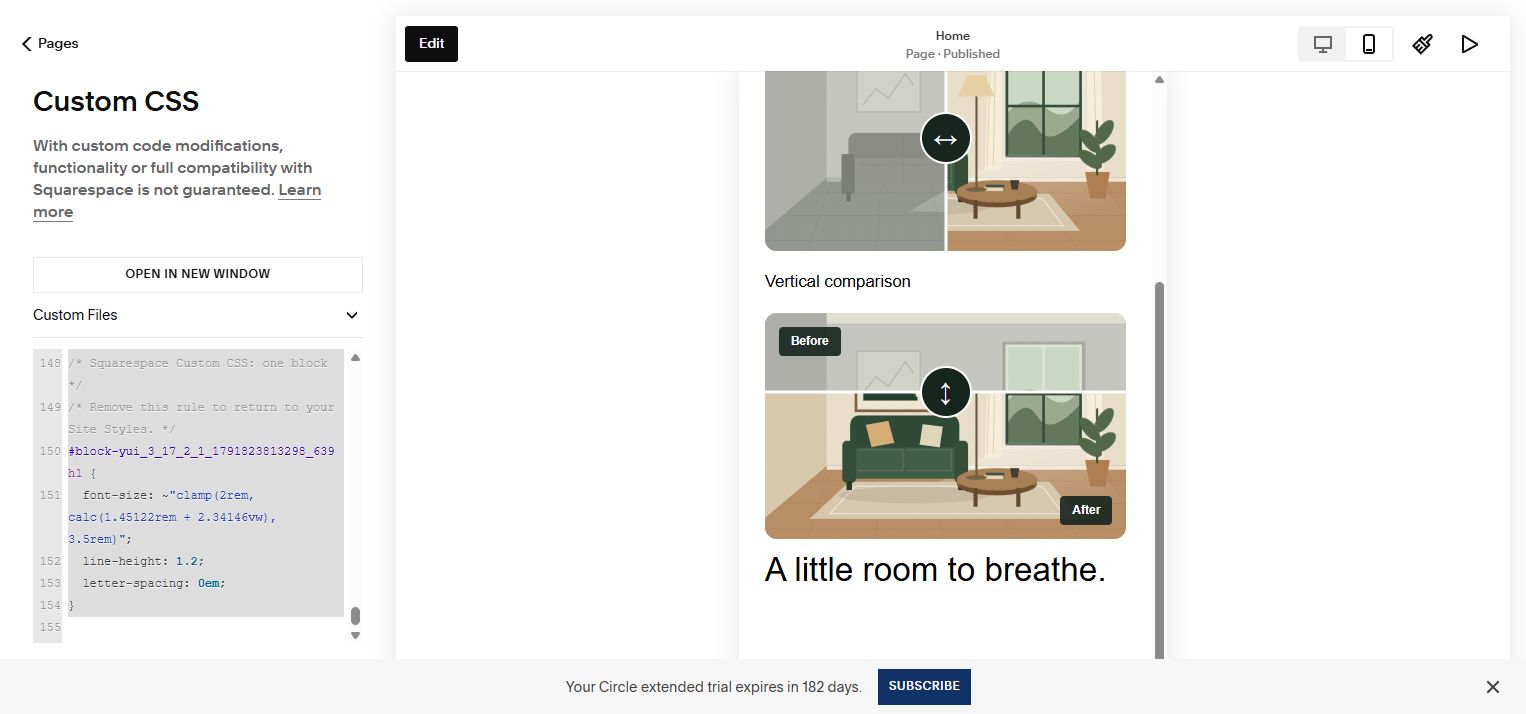
Here is a free starting rule for a Heading 1 in a single block. Replace block-YOUR-ID with the real block ID. The pixel sizes assume your site's root font size is 16px. Leave your font family alone initially so you can judge the size change on its own.
/* Replace block-YOUR-ID with your actual block ID. */
/* Keep the quotes: Squarespace compiles Custom CSS as LESS. */
#block-YOUR-ID h1 {
  font-size: ~"clamp(2rem, calc(1.45122rem + 2.34146vw), 3.5rem)";
  line-height: 1.2;
  letter-spacing: 0em;
}
The ~"..." syntax matters in Squarespace's Custom CSS panel. It keeps the fluid formula intact while LESS compiles your styles. Removing the quotes can let the compiler evaluate mixed units too early. This syntax is for the Custom CSS panel; it is not plain CSS for a Code Block. LESS calls this escaping.
Install it on one block first.
- Prepare a test page. Use an unlinked page with a Text Block and a Heading 1. Include a longer heading so you can see how it wraps. Save the page.
- Find the block ID. Inspect the block in your browser or use the Element ID Finder. Copy the ID beginning with
block-, not the page's address or a section ID. - Back up your styles. Open the Custom CSS panel and copy its existing contents somewhere safe. Add the example at the bottom, replacing the placeholder ID. Keep the quotes around the formula.
- Save and compare. Check the same heading in desktop and phone previews. Look for clipped lines, unwanted overlap, and changes to other blocks. Check the saved page as well as the editor.
- Adjust or remove. Change your minimum and maximum sizes in the calculator if needed. To return to the original styling, remove only the rule you added.
In our Squarespace 7.1 Fluid Engine test site, the quoted formula retained its responsive behavior after saving through the Custom CSS editor. We tested the new rule on a native Text Block, targeted by its block ID. At a 1114px viewport, its heading measured 49.3px. At 428px, it measured 33.2px. The other heading retained its own styling. Existing styles can change which rule wins, so start with a single block on your site.
This walkthrough is not a compatibility claim for every template, a Squarespace 7.0 Developer Mode test, or proof of a customer's installation. Squarespace does not troubleshoot third-party custom CSS. Read its Custom CSS guidance.
Choose a font before adding another one.
Search Squarespace's font picker for the family you want first. If it is available there, use it rather than adding another font request. When a brand requires a font outside the picker, confirm its web license and use its provider's embed or a properly licensed font file.
A custom font needs an actual loading method, such as @font-face. Writing a font name in CSS does not download it. Provide a fallback family and test while the font is loading. Avoid a body * override, which can also replace icon fonts and unrelated interface text.
Style one heading without rewriting the site.
A block-specific selector makes the scope explicit. In this example, replace the ID and font family with your own values. It only changes Heading 2 elements inside that block. Choose the heading level for the document's structure, then style it to suit the design.
#block-YOUR-ID h2 {
  font-family: Georgia, serif;
  font-weight: 400;
  line-height: 1.25;
}
If nothing changes, check that the text really is Heading 2 and that the ID still belongs to that block. Investigate the competing style before adding !important to everything.
Keep links recognizable.
Use the section's color theme for a consistent starting point. An inline color applied in the text editor can take precedence, so inspect the text itself if a theme change appears to do nothing. For a focused CSS treatment, keep the scope to one text block and retain a visible underline:
#block-YOUR-ID p a {
  color: #24553a;
  text-decoration: underline;
  text-underline-offset: 0.18em;
}
That green is an example, not a universal color choice. Check contrast against your actual background and keep a visible keyboard focus indicator.
Give a quotation room without making it fragile.
For a real blockquote element, start with spacing and a simple border. Check the saved markup before using this on a dedicated Quote Block, which may have a different structure.
#block-YOUR-ID blockquote {
  margin-inline: 0;
  padding-left: 1.25rem;
  border-left: 3px solid currentColor;
}
Make the paragraph comfortable to read.
Begin in Site Styles for the paragraph group. Read several full paragraphs, not just a short preview sentence. Judge font size together with line height and the width of the text block. More width is not always more readable.
For a single paragraph block, the calculator's Body text preset uses a modest 16px to 18px range and a 1.6 line height. Those values are a starting point. Your font, audience, and content determine the right result. Do not force every paragraph into a fixed-height container; enlarged text needs room to reflow.
If the result looks wrong.
The heading stays the same size.
Check your viewport range, the target heading level, and the block ID. Keep the escaped quotes in the Custom CSS formula. Inspect the computed font size on the saved page. A stronger rule elsewhere may override yours.
It looks different from the calculator.
The preview uses Georgia and a 16px root size. Your site's font, font weight, root size, and available line width may differ. Compare the calculated size first, then adjust wrapping and spacing using your actual content.
More text changed than I expected.
An export without a block ID targets matching headings or paragraphs in all Text Blocks. Remove it, enter a specific block ID, and export again. A rule targeting a whole heading level is intentionally broader than a block-specific rule.
The phone layout is cramped.
Check the Fluid Engine mobile grid and block height before shrinking every font. Test longer text and zoom. If tight tracking causes overlap, return it toward zero.
Build a consistent set of sizes.
The Spacing Calculator combines a fluid type preview, a free letter-spacing converter, and optional code exports. Its advanced mode creates nine type sizes and eleven spacing tokens for a reusable system.
Preview freely. Personal-use code export is $11.99, one time. An account and email verification are required. The example CSS on this page is free to use.