Before/After Slider for Squarespace
Let the difference
speak for itself.
Give your work a reveal worth exploring. Turn two images into an interactive comparison for your portfolio, renovation story, or photo edit.
One-time purchase for personal use. Free preview.
Account and email verification required to purchase and access code.
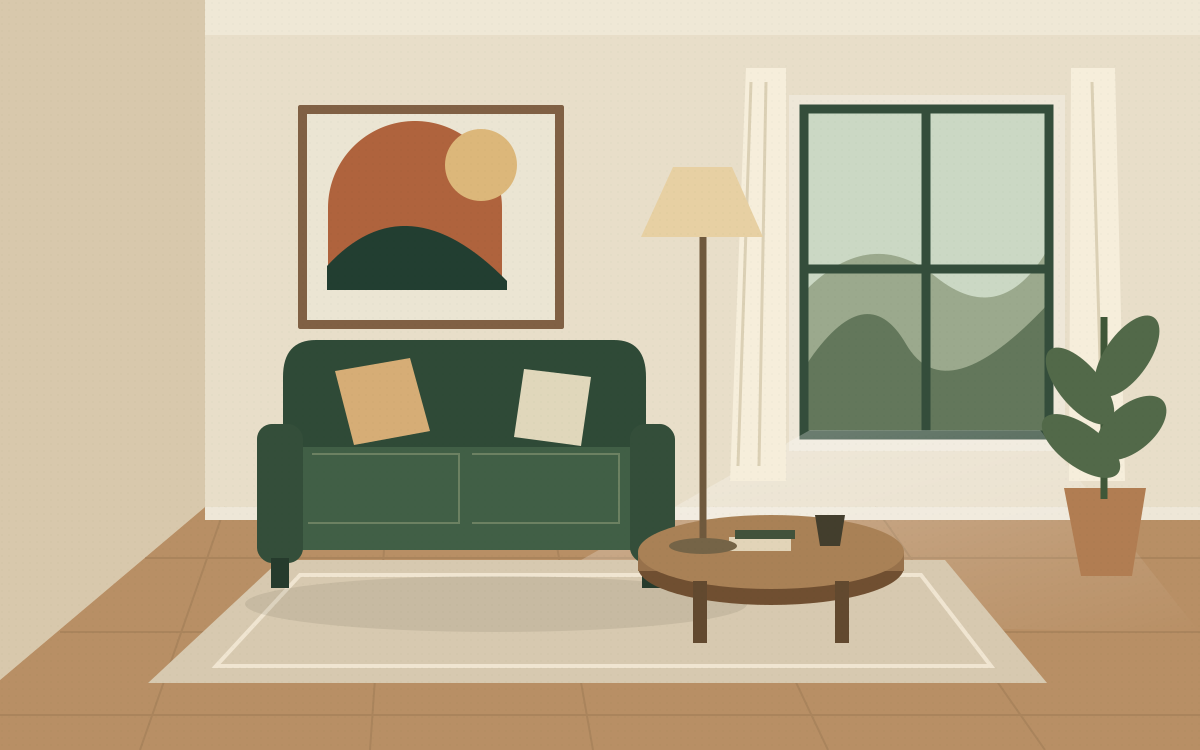
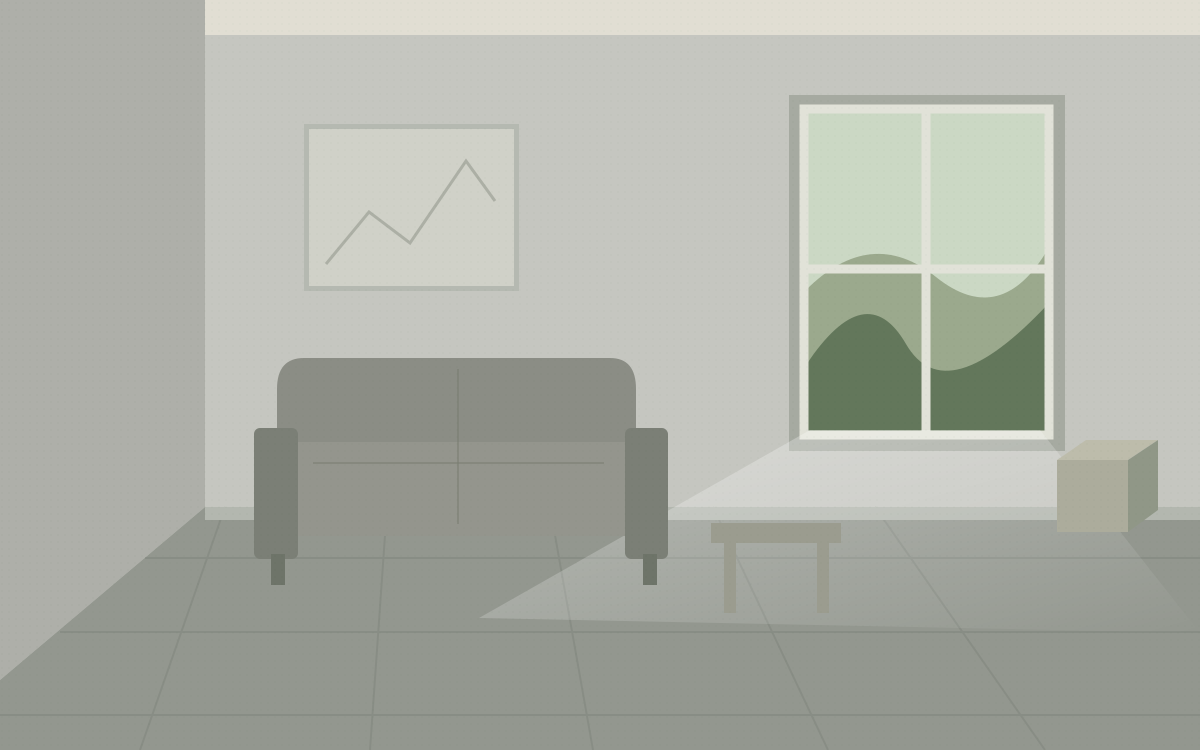 BeforeAfter
1 / Make it yours
A small detail.
A much better story.
Try the controls on our illustrated room, or add your own image URLs. The preview is free. Purchase unlocks your code export. Settings stay in this browser tab while you sign in or check out.
BeforeAfterUse images with matching framing. Images fill a 16:10 frame, so the edges may crop. Demo artwork illustrates a concept, not a customer project.
Your next step
Like the result? Put it on your site.
Checking your tool access...
2 / From preview to your page
Two images. One Code Block.
Prepare your pair
Choose images of the same subject from the same angle. Upload them to your site's asset library or image host, and copy their public HTTPS URLs. Keep those files available while the slider is in use.
Customize and copy
Enter both URLs, add meaningful image descriptions, and choose your reveal. Sign in to your verified Squarespace Tools account. Once purchased, copy the complete generated code.
Paste, size, check
Add a Squarespace Code Block, set the type to HTML, and turn off Display Source. Paste the whole block, then drag the block's side handles to the width you want. Check its placement in both desktop and mobile layouts. Save and exit the editor to test the slider, then check the published page while signed out. Test touch and keyboard as well as dragging.
Saved on a real Squarespace site
See both directions in place.
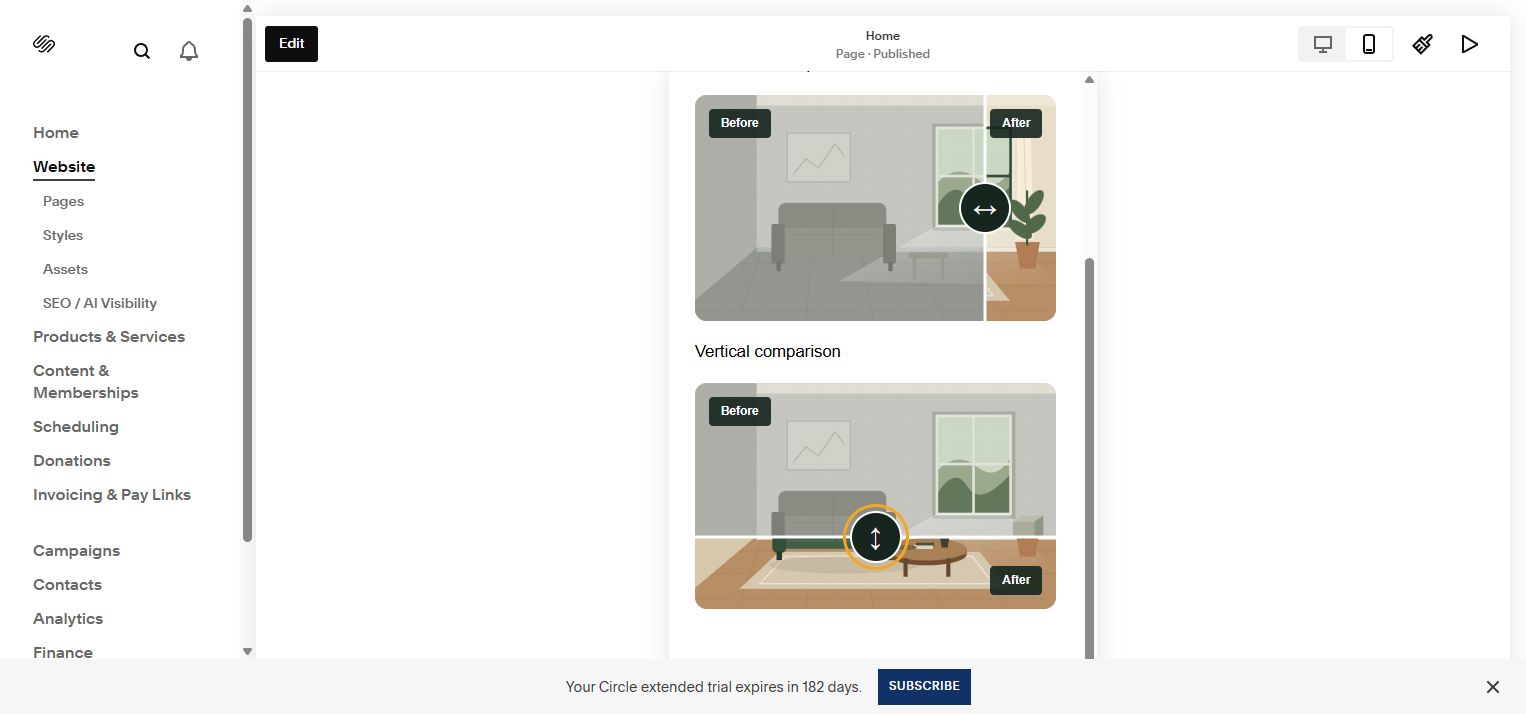
The horizontal and vertical exports below were installed in Code Blocks on our Squarespace 7.1 test site. This is the saved mobile preview, checked October 12, 2026. The room artwork is an illustrated example.
Follow the real editor
From two images to your Squarespace page.
A captioned visual walkthrough using screens from our Squarespace 7.1 test site. Pause whenever you need. There is no audio.
Six steps, about 90 seconds. Actual editor screenshots, arranged as a visual guide. The room is an illustrated example. A trial-site preview does not prove compatibility with every template or physical phone.
Read the complete walkthrough
- Prepare the images. Choose matching views and a 16:10 crop. Upload both images and copy their public HTTPS addresses. In the free preview, enter both URLs, meaningful descriptions, and your preferred direction.
- Check the requirements and get the export. Confirm that your Squarespace plan supports JavaScript in Code Blocks. Sign in to your verified Squarespace Tools account. A purchase unlocks the complete export; the personal-use price is $11.99. Copy all of the generated code.
- Add an HTML Code Block. On an unlinked test page, click Edit, then Add Block and Code. Open the Code Block settings. Set Mode to HTML and leave Display Source Code off. Paste the complete export, including its style and script tags. The walkthrough shows an existing test block with two comparisons.
- Save, exit, and try the handle. Size the block to fit your section. Save your changes and exit the editor. A Script Disabled message inside the editor does not establish a broken installation. In the saved preview, drag the handle, then focus it with Tab and use the arrow keys.
- Check both layouts. Use the desktop and mobile previews. Make sure the images, labels, and following section fit. Then check the published page while signed out and on a real phone. The screen shown here is a browser preview, not a physical-device test.
- Keep a way back. Use the checklist and symptom-specific help below. To remove the slider, delete only its Code Block and save. Your source images remain in the asset library. For help, send the tool name, page URL, browser/device, and a description of the problem.
Keep this open beside Squarespace
Check your installation.
Use the saved page outside edit mode. Start on an unlinked test page and keep a copy of existing custom code.
Remove the change
Delete only the Code Block containing this comparison, then save. Your source images remain in your asset library.
What to send if you need help
Tell us the tool name, your page URL, Squarespace version, browser/device, what you expected, and what happened. A screenshot helps. Do not send passwords, private access links, or payment details.
Contact Squarespace Tools support3 / A few helpful answers
Know what you're getting.
What does the $11.99 purchase include?
Access to the Before/After Slider generator and code export for personal use, with a one-time payment. Preview the design before buying. A free account and verified email are required. See pack and commercial license options if you build for clients.
How is it delivered, and can I request a refund?
This is a digital code export. After confirmed payment, access it through your verified Squarespace Tools account. No physical item is shipped. Our existing refund policy provides a full refund if you contact us within 14 days of your initial purchase.
Will visitors need a Squarespace Tools account?
No. The exported slider runs on your website. Only you need an account here to access the generator's code export.
Can I put more than one slider on a page?
Yes. Each exported comparison has its own controls. Generate and paste a complete block for each pair of images.
Why does my slider look blank or inactive?
Open both image URLs in a signed-out browser to check they are public. Confirm your plan supports JavaScript, that your Code Block is set to HTML, and that Display Source is off. Scripts may be disabled in the editor, so check the published page while signed out. Contact us with the page URL if you need help.
Can I follow a guide before deciding?
Yes. Our Before/After Slider installation guide explains the image preparation, code placement, and checks. Buying a tool gives you access to its generator; you still add the exported code to your own site.